
So, your board is up and running. Feedback is coming in, votes are rolling, and you’ve probably already added your game’s logo and a background image to set the mood.
It works. But does it feel like your game?
Your players crave immersion. So when they click through to suggest a new boss mechanic or report a bug, make it feel like they never left your game.
The good news? With a little CSS and your favorite AI tool — like ChatGPT, Gemini, or Claude — you can transform your Feature Upvote board into a fully branded extension of your game. No web design skills required.
In this guide, you’ll learn how to:
- Follow a simple, non-technical workflow to customize your board
- Turn your board into a natural extension of your game’s world
- Use AI + Inspect to fix tricky elements (buttons, labels, sub-pages)
- Adapt the same approach to completely different visual styles
- Validate your board with a simple “Final Design Review” checklist
Where to Put the CSS (So You Don’t Get Stuck)
Before we start, here’s where the magic happens. In your Feature Upvote admin panel:
- Go to Settings → Appearance
- Scroll down to “Custom CSS”
- Paste your CSS there and hit Save
That’s it. If something breaks, just delete the CSS and you’re back to normal. No harm, no foul.
The Simple Workflow
Before we touch any code, let’s get into the right mindset.
You’re not building a UI from scratch — you’re skinning an existing one. Think of it like decorating a room: the structure is already there. Your job is to make it feel like your game.
Here’s the process:
- Define your style — Gather your game’s hex codes (six-digit codes like #4ef2ff that represent specific colors) and overall vibe. In your case, it’s probably best to use the same color palette from your game or existing website.
- Collaborate with AI — Share your board link and a screenshot to start. The AI will generate the initial CSS for you.
- Apply & iterate — Paste the CSS into your Appearance settings. Then open Inspect on any element that still looks off, screenshot it with the class names visible, and tell the AI what to fix. Repeat until everything looks right — then check sub-pages and mobile.
💡Quick tip: How to “Inspect” Your Board
The Inspect Tool is your secret weapon in finding the names of elements you would like to change. It’s built into every browser and requires zero coding knowledge:
- Right-Click & Inspect Hover over the element you want to edit—for example, the Upvote button—then right-click and select “Inspect.”
- Find the highlighted code A panel will open showing the HTML. Look for the class name:
class="btn btn-lg btn-voting-panel btn-upvote" - Copy & tell your AI You don’t need to understand it – just let your AI know. Example prompt: “I found the upvote button class: .btn-upvote. Please change its background to Blue and make the text dark.”
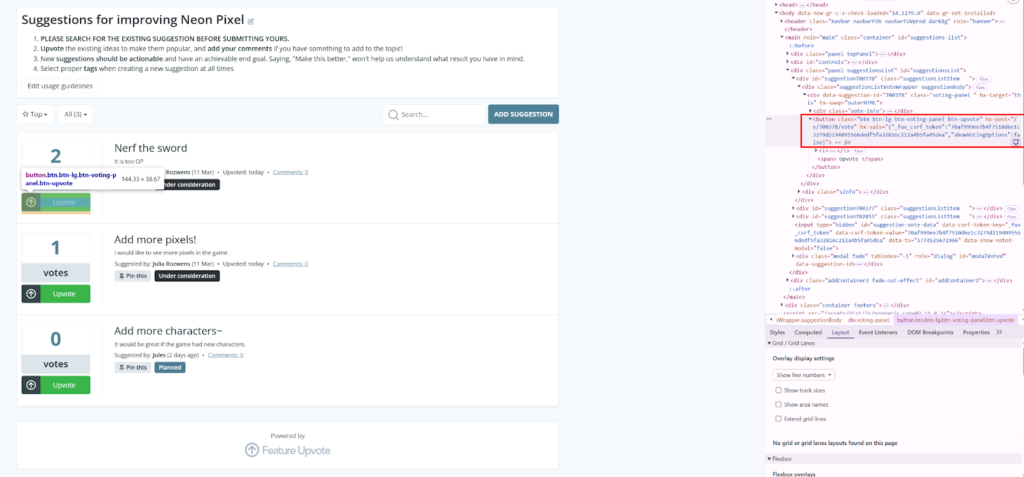
You can also attach a screenshot for even better results.
Case Study: Neon Pixel (Retro-Roguelike)
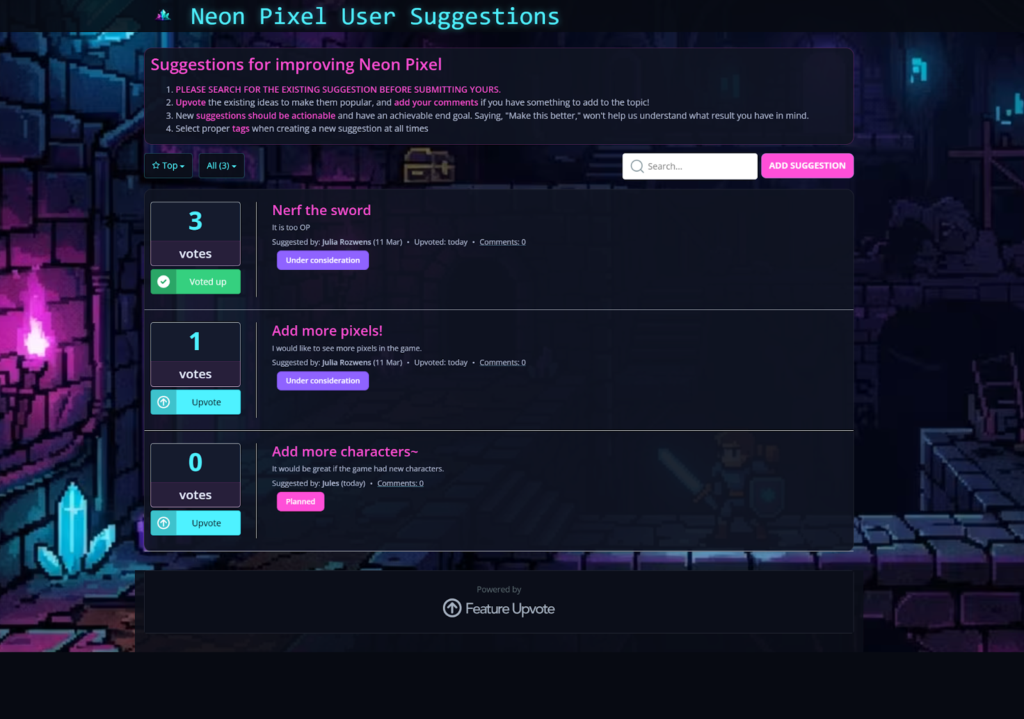
To show you exactly how this works, we built a demo project from scratch: Neon Pixel — a retro roguelike. We picked vibrant neon colors to showcase how dramatically different your board can look from the default. Is it a lot? Maybe! But we wanted to give you a bold, unmistakable example of what’s possible.
Step 1 — Define the Style
We started with a generated pixel-art dungeon background, then built a palette from it:
- Background color: #070a12 — the main color behind everything
- Primary color: #4ef2ff — used for buttons, links, and key interactive elements
- Accent color: #ff4fd8 — used for highlights, hover states, and secondary elements
- Text color: #e9efff — a soft off-white that’s easier on the eyes against the dark background
For typography, I used “Press Start 2P” from Google Fonts to match the arcade vibe.
But in your case, of course, it will probably be best to use the same color palette from your game or existing website.
Step 2 — The Base Pass
We uploaded our background art and gave the AI the link to our board along with a screenshot.
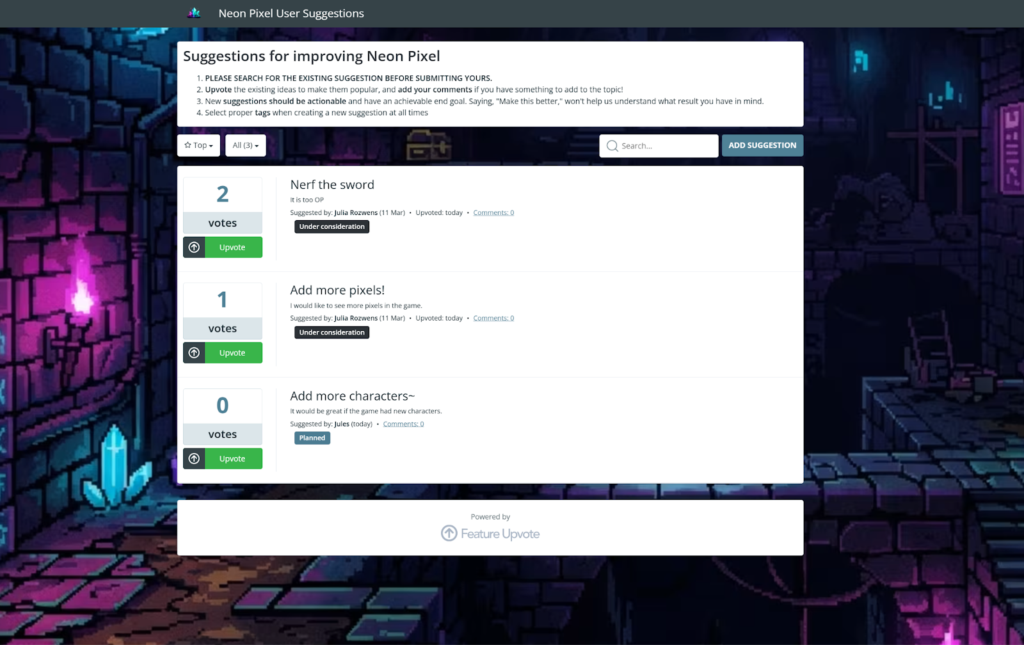
The prompt we used:
“I am styling this Feature Upvote board [LINK TO THE BOARD] for my game ‘Neon Pixel’. I have attached a screenshot. Please write CSS for a dark theme using Neon Cyan #4ef2ff and Magenta #ff4fd8 accents. Make the cards slightly transparent and apply the ‘Press Start 2P’ Google Font to the header.”
The AI generated the initial CSS, we pasted it into Appearance settings, and the board started taking shape.
Step 3 — Refine & Level Up with “Inspect”
The first pass gets you 80% of the way there, but you’ll likely hit a few “stubborn” elements. For us, certain dynamic buttons, status labels, and the “votes” text became invisible against the new dark panels.
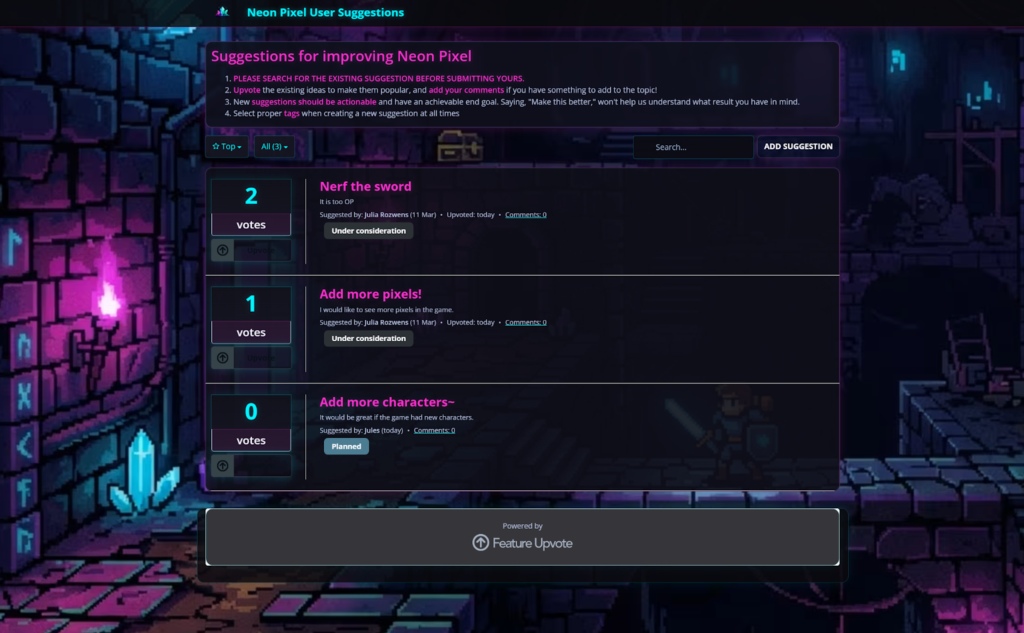
We didn’t guess how to fix it. We right-clicked the elements, selected “Inspect,” and found the specific class name for that HTML element (like .vote-label). We then told the AI:
“The ‘votes’ label is using too dark color (
class .vote-label). Please force it to a lighter color so it’s readable against the dark background.”
That’s it. The AI gives you new CSS to add to your existing one, and the problem is solved.
💡 Most of your time won’t be writing CSS — it will be spotting what still looks “off” and telling the AI exactly what to fix.
Step 4 — Conquering the Sub-Pages
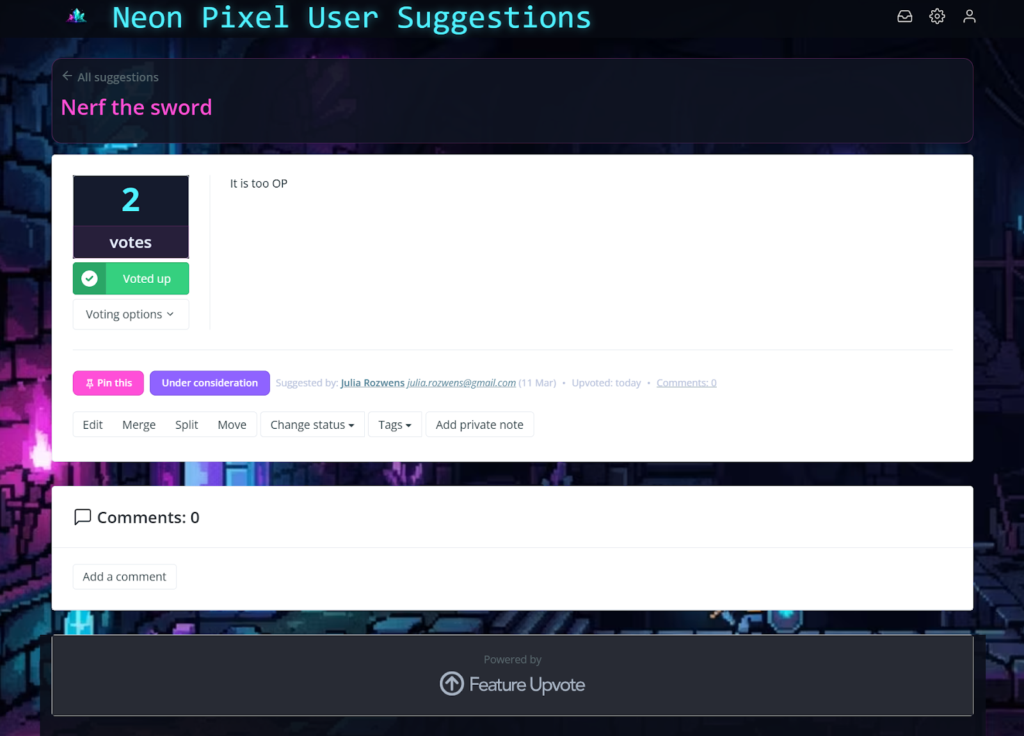
When we clicked an individual suggestion, we found the sub-page was still a “white box” with dark text. By using the Inspect tool on the sub-page container (#view-suggestion), we were able to ensure the dark theme and custom Magenta comment buttons carried over to the entire experience.
Step 5 — The Final Device & Element Audit
The last step is to ensure your board feels good on any device. Whether your players are on PC, mobile, or tablet, you want them to be able to easily share feedback and vote without friction.
This is also the time to look for any remaining “default” elements. We spotted a few small icons and the “Add Suggestion” button that still didn’t quite match our vibe. One last quick Inspect/Prompt cycle fixed these final details.
The “What to Tell the AI” Prompt Box
Copy and paste this template, then fill in your details:
“I’m styling a Feature Upvote board for my game [Game Name]. I want a [Dark/Light/Cozy] theme. My brand colors are [Hex Codes]. Here’s the link to my board and a screenshot with Inspect open so you can see the class names. I’d like to use [Font Name] from Google Fonts. Please make sure all text stays readable.”
💡 Pro Tip: Seasonal & Event Styling
Since AI makes this process so fast, you can treat your board as a live community space:
- Seasonal Events: Swap your colors for orange and a “spooky” background for Halloween in 10 minutes.
- Expansion Launches: Update the board to match a new DLC’s color identity on launch day.
✅ The “Launch Day” Checklist
Once you’re done iterating on your CSS, run through this quick checklist to make sure everything looks right:
- The “Squint” Test: Look at your main board from a distance. Are the vote counts and core titles the first thing you see?
- The Deep Dive: Click into a suggestion. Watch out for “White Box Syndrome” where individual suggestion pages revert to default colors.
- The Conversation: Scroll to the comments. Is the text high-contrast enough to read effortlessly?
- The Call to Action: Find your “Add Suggestion,” “Vote,” and “Add Comment” buttons. These should be your boldest brand colors — make sure they pop!
- The Device Check: Open your board on different devices — desktop, mobile, tablet. Make sure your players can easily share feedback and vote no matter how they’re browsing.
Check Out Another Style: Bloom & Burrow
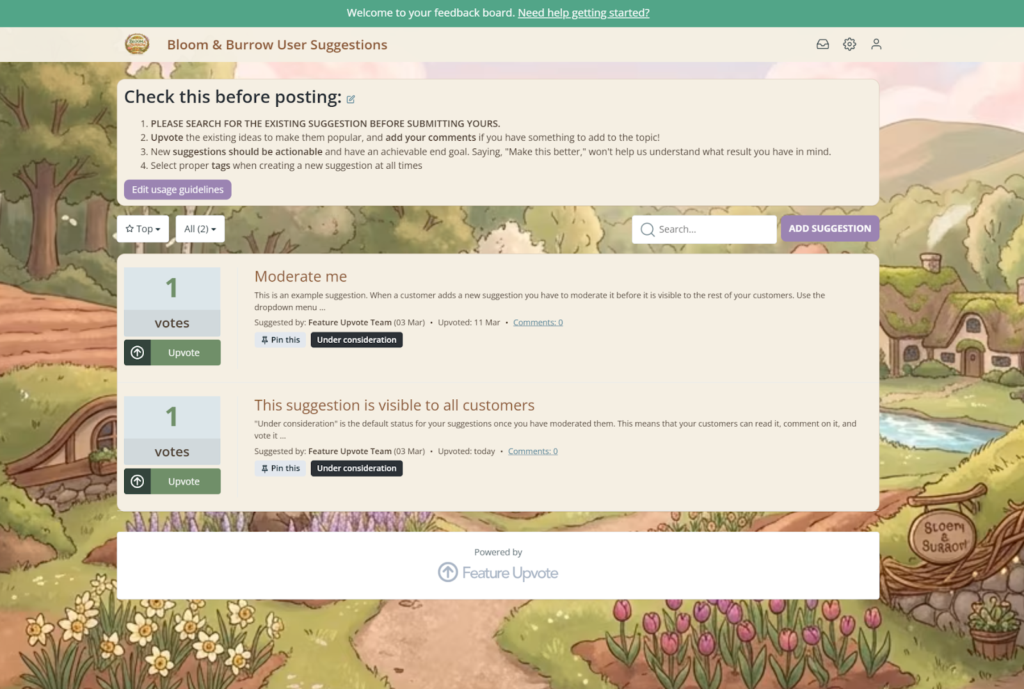
We also built a second example to show a different direction: Bloom & Burrow — a cozy farming game.
Same CSS workflow, but this time we used warm creams (#f5efe3), earthy browns (#8a5a3c), and soft sage greens (#708f69). No neon, no glass panels — just a softer, warmer look. The point is, the same approach works whether your game is dark and gritty or light and cozy.
Final Thought
As a Community Manager, you already have the brand assets. You don’t need to wait for a developer to skin your board. With a background image, your hex codes, and a little bit of back-and-forth with an AI, you can turn a feedback tool into a native part of your game’s universe that evolves alongside your community.
Stuck? Need some help?
Write to us (we’re friendly!) at support@featureupvote.com and we’ll help you get the CSS just right.